

DevOps
Linux Groups and File Permission: Complete Admin Guide
Master Linux groups and File Permission with this practical guide covering user creation, group memberships, sudo privileges, and file permissions.

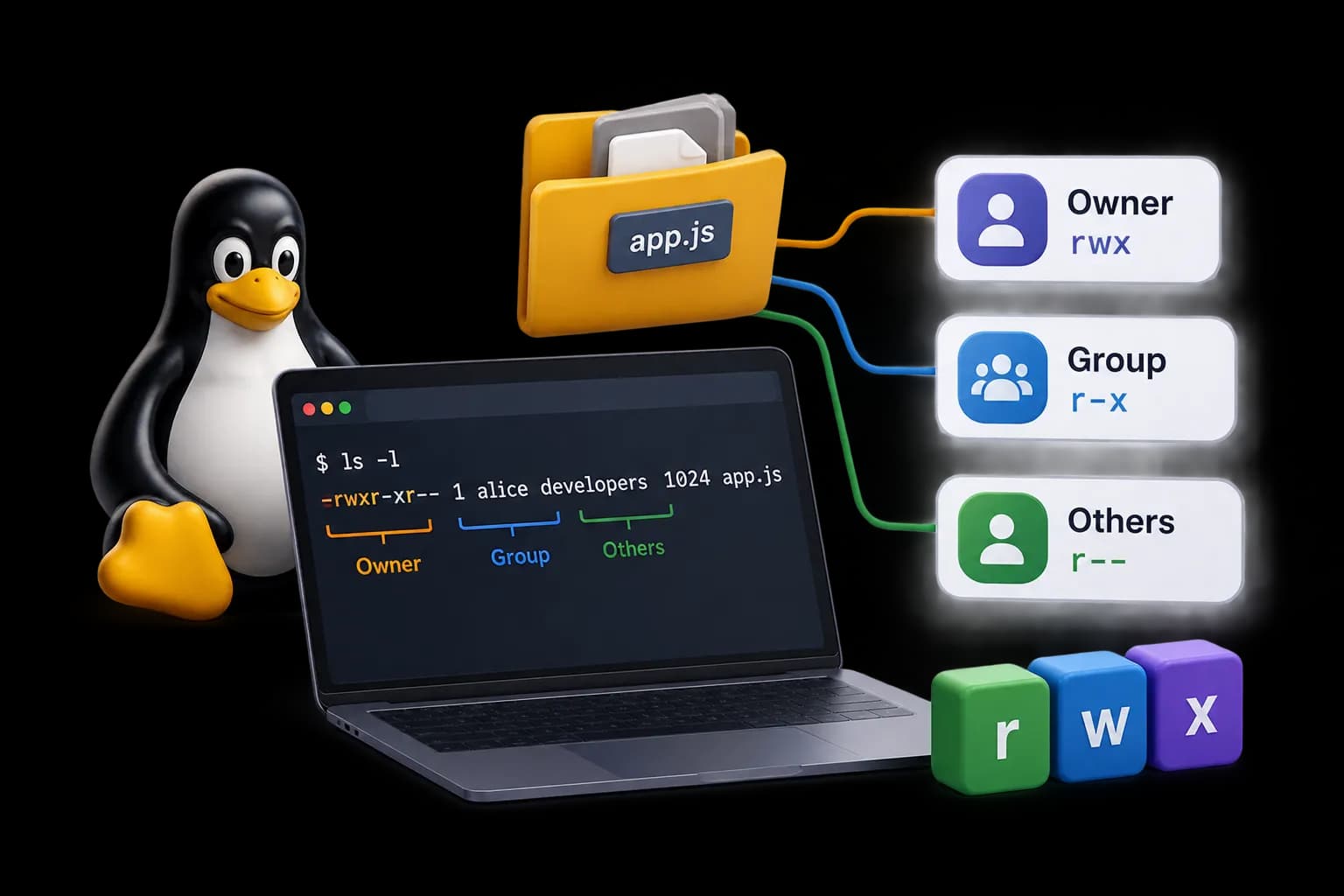 Hover to zoom
You stare at the terminal at 2:00 AM because an automated deployment pipeline crashed with a permission denied error. A junior engineer added a CI runner to the deployment team without the append flag, stripping sudo access and locking the app out of its log directory. Understanding linux groups and file permissions stops these production outages before they break your release cadence.
passwd                      # change my own
sudo passwd ravi           # change hers
sudo passwd -l ravi        # lock
sudo passwd -u ravi        # unlock
sudo passwd -S ravi       # status: P = usable, L = locked, NP = none
sudo passwd -e ravi       # force a change at next login
Deleting a user
sudo userdel ravi         # remove the account, keep his home folder
sudo userdel -r ravi       # remove the account AND delete his home folder
Switching identity
sudo apt update             # do ONE thing as root
sudo -u ravi whoami        # do one thing as ravi
sudo -i                     # become root fully
su - ravi                  # become ravi fully
sudo -l                     # what am I allowed to run with sudo?
Giving someone admin rights
Creating and Managing Groups
Why groups exist
sudo usermod -aG sudo priya       # Ubuntu / Debian
sudo usermod -aG wheel priya      # Fedora / RHEL
Without groups, giving five people access to a folder means five separate grants. Add a sixth person and you do it again. Remove someone and you have to remember every folder they touched. With a group, you grant access to the group once. Membership becomes the only thing you manage.
Create a group
sudo groupadd devs

# If you need a specific number (useful when matching another machine):
sudo groupadd -g 2000 devs
That's it. Check it worked:
getent group devsAdd people to it
sudo usermod -aG devs priya
sudo usermod -aG devs raviVerify
groups priya            # which groups is she in
getent group devs       # who is in this group
id priya                # everything at once
The thing that confuses everyone
After adding someone to a group, they must log out and log back in. Group membership is stamped onto a login session when it starts. Changing the file doesn't reach into a session that's already running. Their badge was reprinted, but they're still carrying the old one. To test it without logging out:
newgrp devs         # starts a sub-shell with the new group active
#Type exit to leave that sub-shell.
Primary vs secondary groups
Every user has one primary group and any number of secondary groups. The primary group is the one stamped on every file they create. That's the only practical difference, but it matters a lot in Part 3.
sudo usermod -g devs priya      # -g (lowercase) changes the PRIMARY group
sudo usermod -aG devs priya     # -aG (capital) adds a SECONDARY group
Remove and delete
sudo gpasswd -d priya devs      # remove one person from the group
sudo groupdel devs              # delete the group entirely
Changing File Permissions (chmod)
First, read what's there
ls -l notes.txtThe nine letters after the first character are three sets of three:
rw- r-- r--
owner group everyone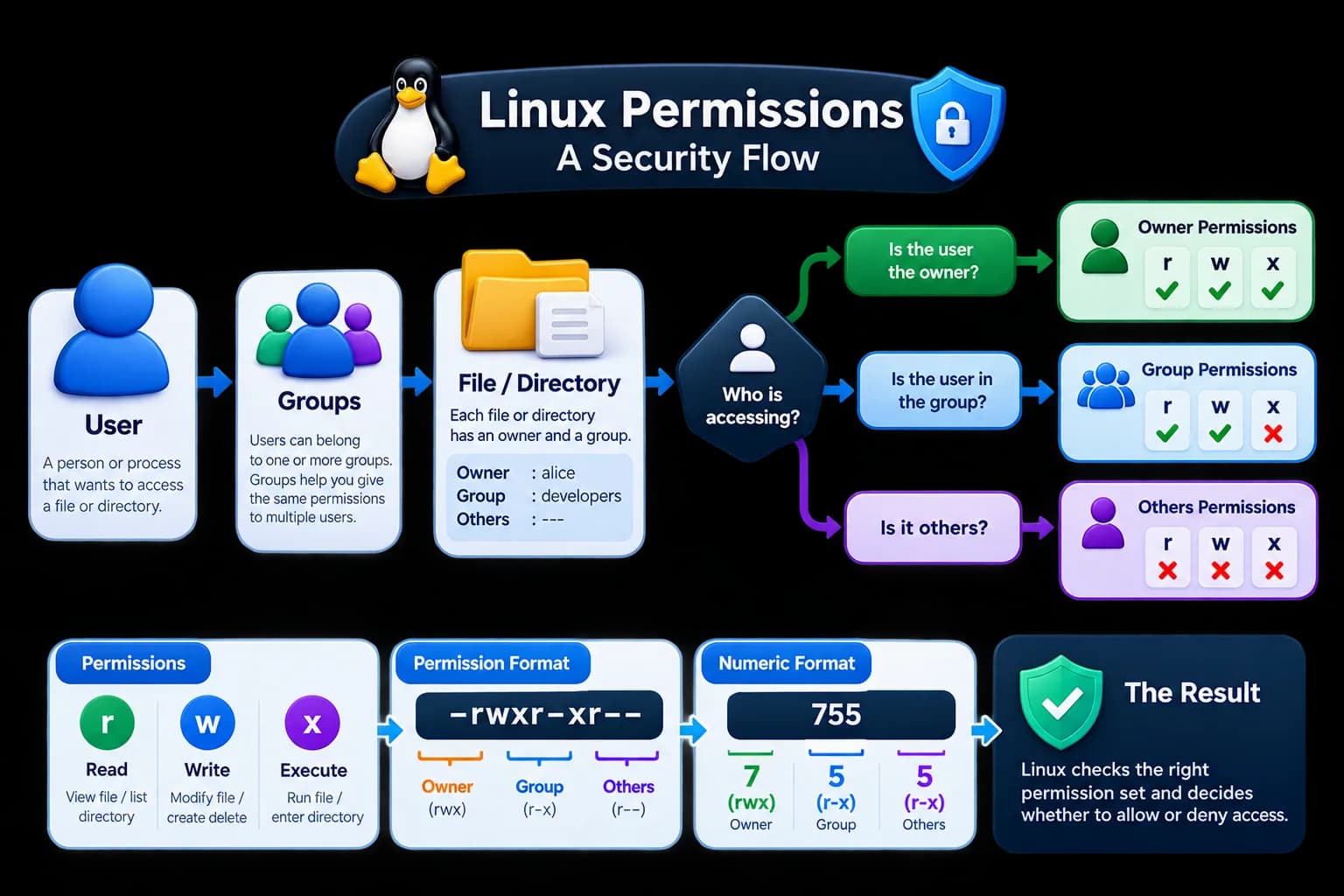 Hover to zoom
The numbers
Change it — by number
chmod 644 notes.txt # owner edits, everyone reads
chmod 600 secrets.txt # only owner, nobody else at all
chmod 755 script.sh # owner does all, others read and run
chmod 750 script.sh # owner does all, group reads and runs, others nothing
chmod 660 shared.txt # owner and group edit, others nothing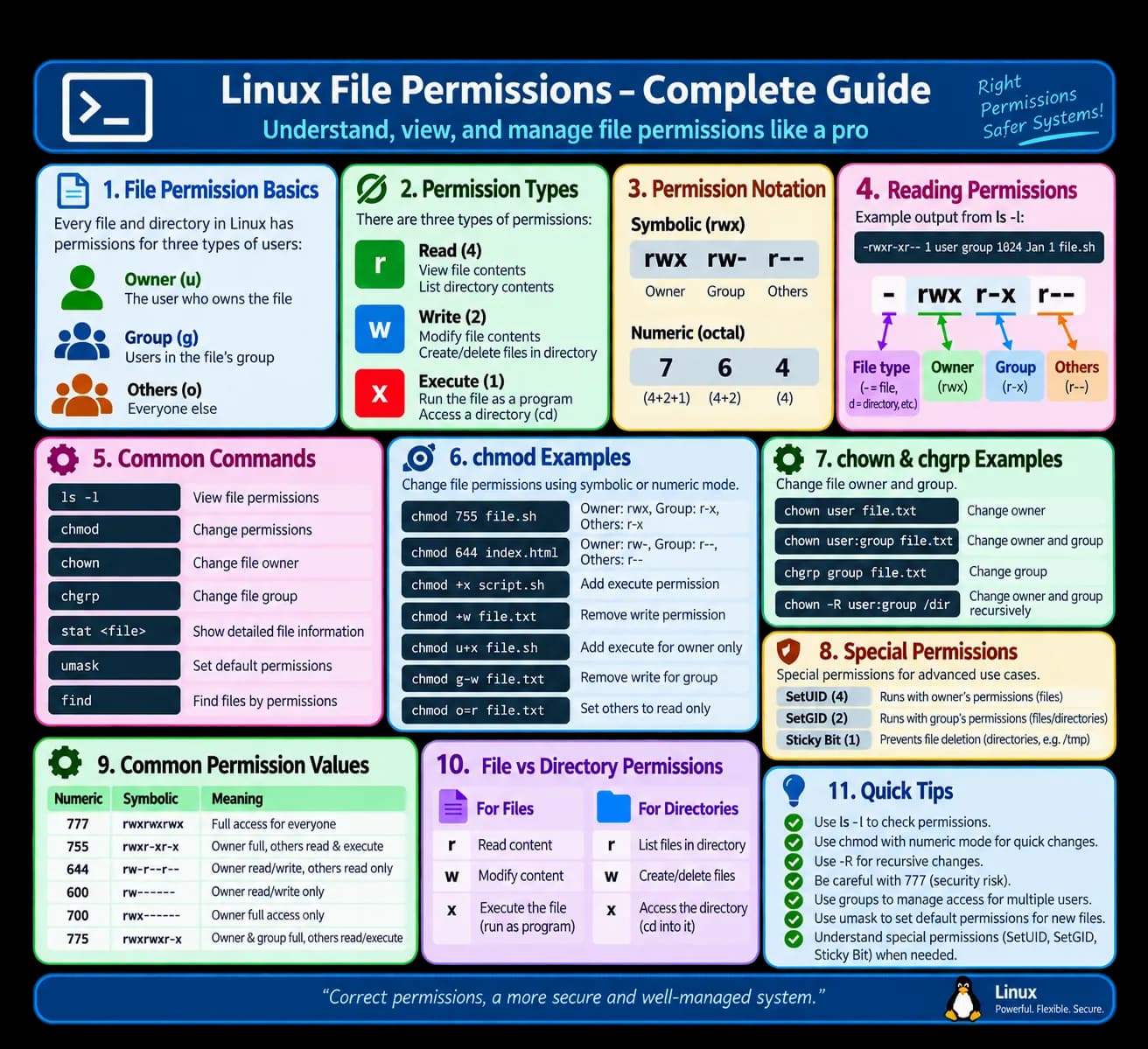 Hover to zoom
Change it — by letter
chmod +x script.sh          # make it runnable
chmod u+x script.sh         # only the owner can run it
chmod g+w report.txt        # let the group edit
chmod o-r private.txt       # stop everyone else from reading
chmod g=r,o= data.txt       # group reads exactly; others nothing